Markdown Guide
All pages on the website are written using markdown. Markdown is a lightweight markup language created for formatting text.
Below is a basic guide on how to write a topic/case study using markdown.
Headings
Headings are denoted using the # character before the word you want to use as a heading.
For example: # Headings is a H1 heading and will be the largest heading on the page. It will also be the top most heading in the table of contents on the left. For example, if I was to use
that would result in the table of contents as:
This is extrapolated for all heading types. Below is a list of all heading types:
Heading 1
   Heading 2
     Heading 3
       Heading 4
Line breaks
Sometimes you want to split up the content of a paragraph. This can be achieved by putting the <br> symbol where you want a line to break.
For example:
Without line break:
This text does not have a line break in it and the contents of the paragraph will wrap at the screen edge.
With line break:
This text does have a line break <br>
in it and the contents of the paragraph will break <br>
onto a new line.
Images
Images can be embedded into you write up by using the syntax . It is important that you include the ! before the bracket to ensure the image is embedded properly. There is no need for the " to be included, this is just to show you an example.
For example:  would look like

Video
Embedding videos is possible with markdown
You will have to use a HTML <iframe> which will embed the video into your write up.
<iframe width="700" height="500" src="https://www.youtube.com/embed/_PPWWRV6gbA" title="The Only Markdown Crash Course You Will Ever Need" frameborder="0" allow="accelerometer; autoplay; clipboard-write; encrypted-media; gyroscope; picture-in-picture; web-share" referrerpolicy="strict-origin-when-cross-origin" allowfullscreen></iframe>
will equal:
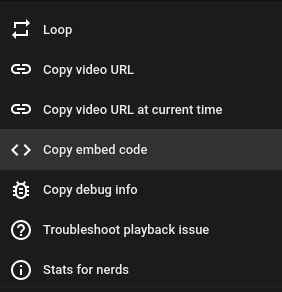
You can get a generated iframe from YouTube by right clicking a video and clicking Copy embed URL in the context menu.
Links
Links are similar to images. The syntax for a link is ["name to display"]("Link to website") for example: [Markdown Guide](https://www.markdownguide.org/basic-syntax/) would look like Markdown Guide
Emphasis
You can make text bold or italic by adding the * symbol around words.
For example: **Bold text** would be Bold text and *Italic text* would be Italic text.
To underline a particular word or sentence you would add ^^ symbols around the word.
Example:
^^Underline^^ would equal Underline^^**Bold Underline**^^ would equal Bold Underline^^*Italic underline*^^ would equal Italic underline
Emphasis can be used in headings and links. For example:
[^^**I am a bold and underlined lined link**^^](#Emphasis) Would equal:
I am a bold and underlined lined link
Or # ^^Underlined heading^^ would equal:
Underlined heading
Blockquotes
Blockquotes are a way to emphasis a point or inlude a quote in your write up.
Blockqoutes are denoted using the > symbol before a sentence
for example > I am a blockquote:
I am a blockquote
Blockquotes can be multiline as well:
I am a block quote
I am also a blockquote
I am a block quote too
Blockquotes can be multi-level too:
I am a block quote
I am also a blockquote
I am a block quote too
Blockquotes can contain other items:
> ## Blockquote heading
> I am just text
> - list item 1
> - list item 2
> **I am bold text** in a *sentence*
Blockquote heading
I am just text
- list item 1
- list item 2
I am bold text in a sentence
Admonitions
Admonitions are a great way to highlight details or important information
For example:
!!!warning "Name of # Admonitions"
    Text must be indented by 1 tab space to appear in the Admonitions
Name of Admonitions
Text must be indented by 1 tab space to appear in the Admonitions
Admonitions can have a title which is denoted between the "" symbols, or if left blank, will have no title:
Text must be indented by 1 tab space to appear in the Admonitions
The title has been left blank - so the admonition has no name!
Collapsed admonition
Admonitions can be made collapsible by using the ??? symbol instead of !!!:
This is collapsible
Text must be indented by 1 tab space to appear in the Admonition
Expanded admonition
Admonitions can be made expanded by using the + with the ??? like ???+:
???+ "This is collapsible but expanded"
    The admonition is expanded by default by using the `+` symbol after `???` like: `???+`
This is collapsible but expanded
The admonition is expanded by default by using the + symbol after ??? like: ???+
Typed of admonitions
Note
Note
Warning
Warning
Danger
Danger
Info
Info
Tip
Tip
Question
Question
Quote
Quote
Markdown editors
Markdown editors make it easy to see what your markdown is doing when you write it. I personally use Obsidian although there are many editors out there.
Markdown Editors
Obsidian is a feature rich markdown text editor. It allows you to preview what you write in real time as you type and has many plugins and extensions to make writing markdown easier.
Get Obsidian
Drafts is a markdown editor for iPadOS which is free and easy to use.
Get Drafts
A simple and elegant open-source markdown editor that focused on speed and usability. It is feature rich and has real time preview so you can see the formatting of what you're typing.
Get MarkText